How the map works: colours, filters and search
The colour of a dot shows the type of charger, the filters above the list narrow the choice, and search looks by city, address or network. Tapping a dot or a row in the list opens the charger card.
Translated from Serbian. Where the exact wording matters, the Serbian original applies.
Colours and labels
The legend is in the top left corner of the map.
| Label | What it looks like and what it means |
|---|---|
| DC | dark dot with a yellow-green border: a direct current charger |
| AC | white dot with a dark border: an alternating current charger |
| Free | yellow-green dot |
| Not working | light grey dot: a state-run charger that is not working according to the JP “Putevi Srbije” list, or a charger reported broken |
| Tesla only | grey dot with the letter “T” |
| Not confirmed | faded dot, with “?” next to the power |
When the map is zoomed out, chargers are grouped into dark circles with a number. Tapping a circle zooms in on that part of the map. When you zoom in to city level, the dot shows the power in kW, with the price next to it.
A green ring around a dot marks a charger you have saved to your favourites.
Filters
Above the list are buttons: All, Favourites, Fast (DC ≥ 50 kW), AC, CHAdeMO, Free and the networks with their number of chargers. One of them is on at a time.
“Confirmed” and “I have a Tesla” are switches and work with any filter, for example Fast and Confirmed together. The browser remembers the Tesla choice for your next visit as well.
Above the list it says how many chargers match your selection and how many are on the map in total (“Showing … of …”). If it says “No chargers for this selection.”, choose “All” or switch off “Confirmed”.
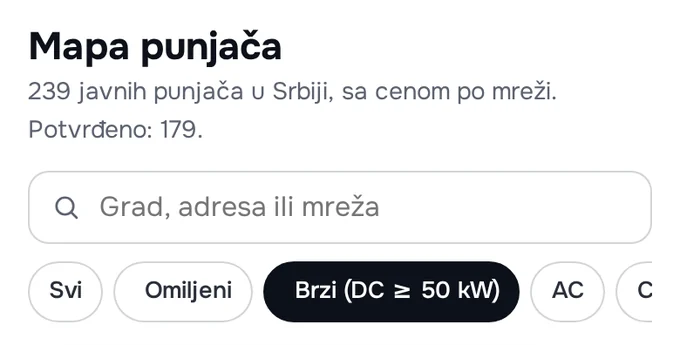
Search and “Near me”
The “City, address or network” field searches by name, address, place and network. You do not need diacritics: “cacak” finds “Čačak”. When you type several words, the chargers that contain all of them are shown.
“Near me” asks for your location only when you press it. The list is then sorted from the nearest charger, with the distance in km. The location is not sent to the site.
When you zoom in on part of the map, the list shows only the chargers in that part (“In this part of the map”). The “All of Serbia” button brings back the full list.
Step by step: from the map to the charger
- Open the map and choose a filter or type a city.
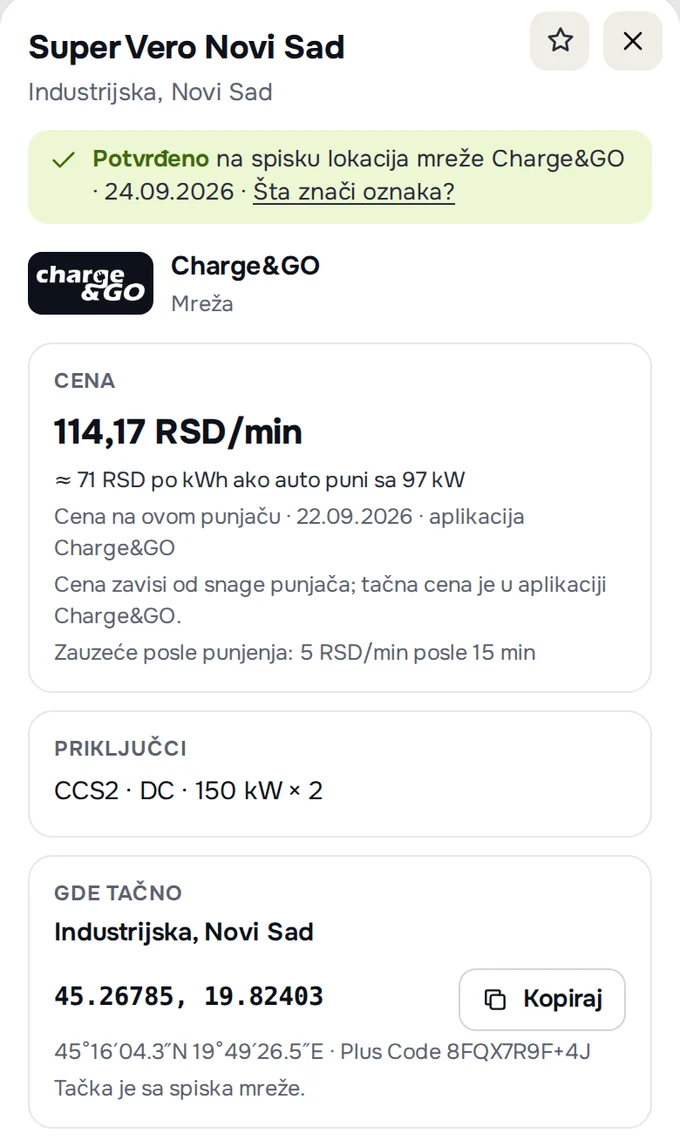
- Tap a dot or a row in the list. The card opens: verification, price, connectors and “Exact location”.
- Look at the verification label and the “Drivers' experience” section with the latest report (what “Confirmed” means).
- Press “Directions”. On Apple devices, Apple Maps opens; on others, Google Maps. Below the button there is a link for Waze and, on Apple devices, also for Google Maps.
- The star at the top of the card saves the charger to your favourites. The list is kept only in this browser and opens with the “Favourites” filter.
On a phone, the map is at the top and the list below it. The card opens from the bottom of the screen, and “Share” sends or copies a link to it.
Details: “Exact location” and links with a preset selection
“Exact location” shows the address, a description of how to find the charger (where it has been checked), coordinates with a “Copy” button, a format in degrees for in-car navigation and the Plus Code. Below that, it says where the point comes from: the network's list, OpenStreetMap, Open Charge Map, or an approximate point for the car park or building.
The map opens with a preset selection through a link:
/mapa/?grad=novi-sad— the map centred on that city, the list sorted from the nearest (beograd, novi-sad, nis, subotica, cacak, kragujevac);/mapa/?mreza=chargego— only one network;/mapa/?f=fast— the Fast filter; the same goes forac,chademo,free,fav;/mapa/?ok=1— confirmed only;/mapa/?tesla=1— “I have a Tesla” for that view only;/mapa/#cg-80— opens that charger's card immediately; the “Share” button gives this kind of link.
Was this helpful?
Thank you for your feedback.
Sent. Thank you.
Sending failed. Write to [email protected].
Updated 28.09.2026 · Report an error in the text